Upgrade to FCP-Suite or FCP-SE
This document describes how to upgrade an FCP-Core deployment to FCP-Suite or FCP-SE.
-
After upgrading to
FCP-SuiteorFCP-SE, management-node alert policies created in FCP-Core are automatically stopped. Other alert policies are retained. -
Compared with
FCP-Core,FCP-SuiteandFCP-SEprovide more features. After theLicenseis configured, additional setup is still required to ensure those features work correctly.
Based on the requirements above, the upgrade mainly includes the following steps:
- Import the
FCP-SuiteorFCP-SElicense - Deploy the Monitor service (
FCP-SuiteandFCP-SE) - Install VNC on hosts (Linux nodes) (
FCP-SuiteandFCP-SE)
Install the Monitor node first by following the Monitor Node Deployment guide, and then continue with the steps below:
Import the FCP-Suite or FCP-SE License
- Obtain the machine code.
-
Log in to the platform as the
adminuser, open theUser Menuin the upper-right corner, chooseAccount Settings, and obtain the machine code on theAccount Settingspage.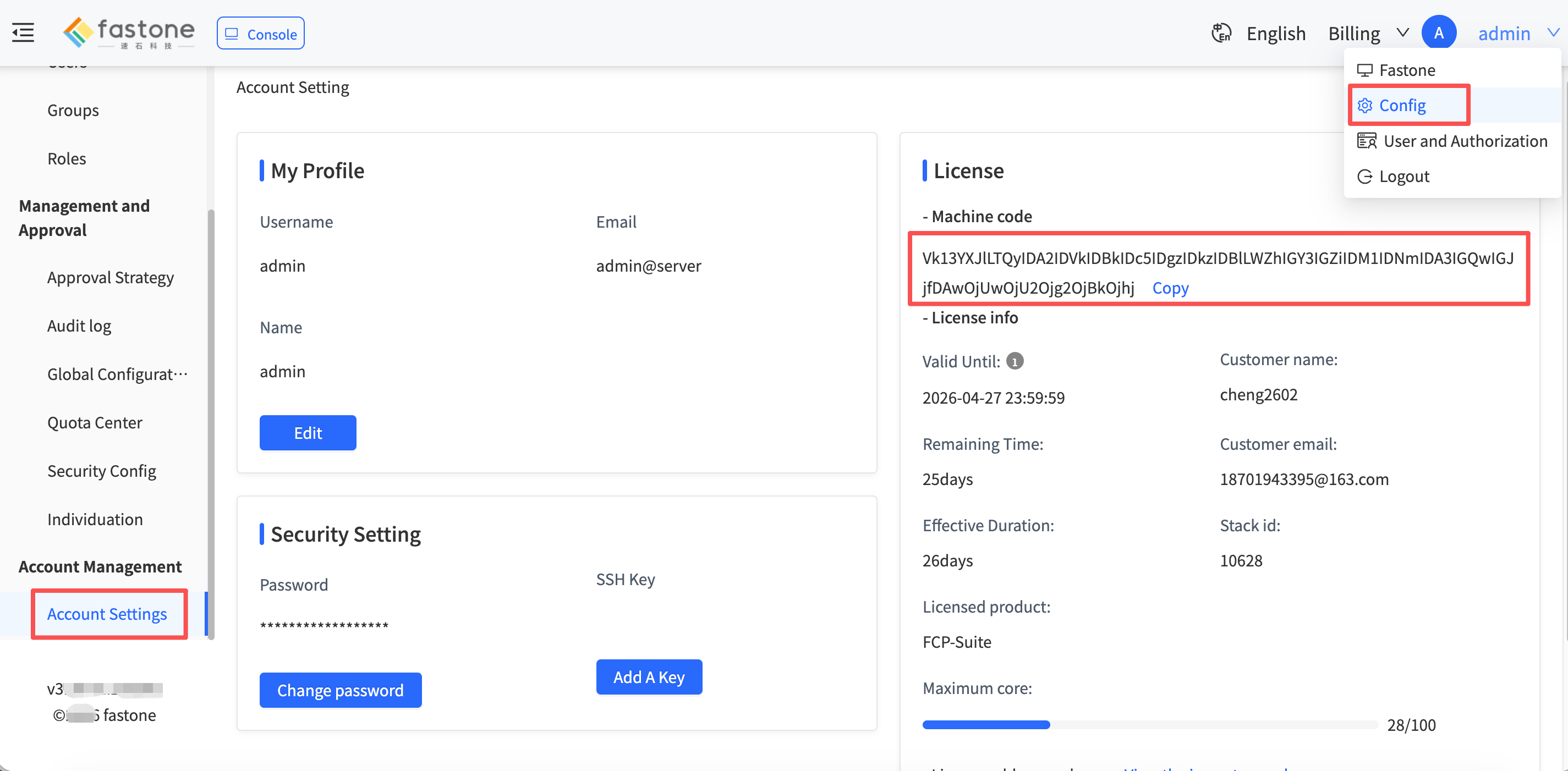
-
Send the machine code to Fastone Sales and request an
FCP-SuiteorFCP-SElicense as needed.
- Import the license.
- After you receive the
Licensefile, log in to the platform as thedeployuser, clickUpgrade to FCP-Suite or FCP-SE, and import theLicenseinto the platform.
Deploy the Monitor Service
Deploy the Monitor Node
Install the Monitor node according to this document. If installation is already complete, continue to the next step.
Configure the Monitor Node
-
Log in to the platform as the
adminuser and click theUpgrade to FCP-Suite or FCP-SEbutton in the upper-right corner, as shown below: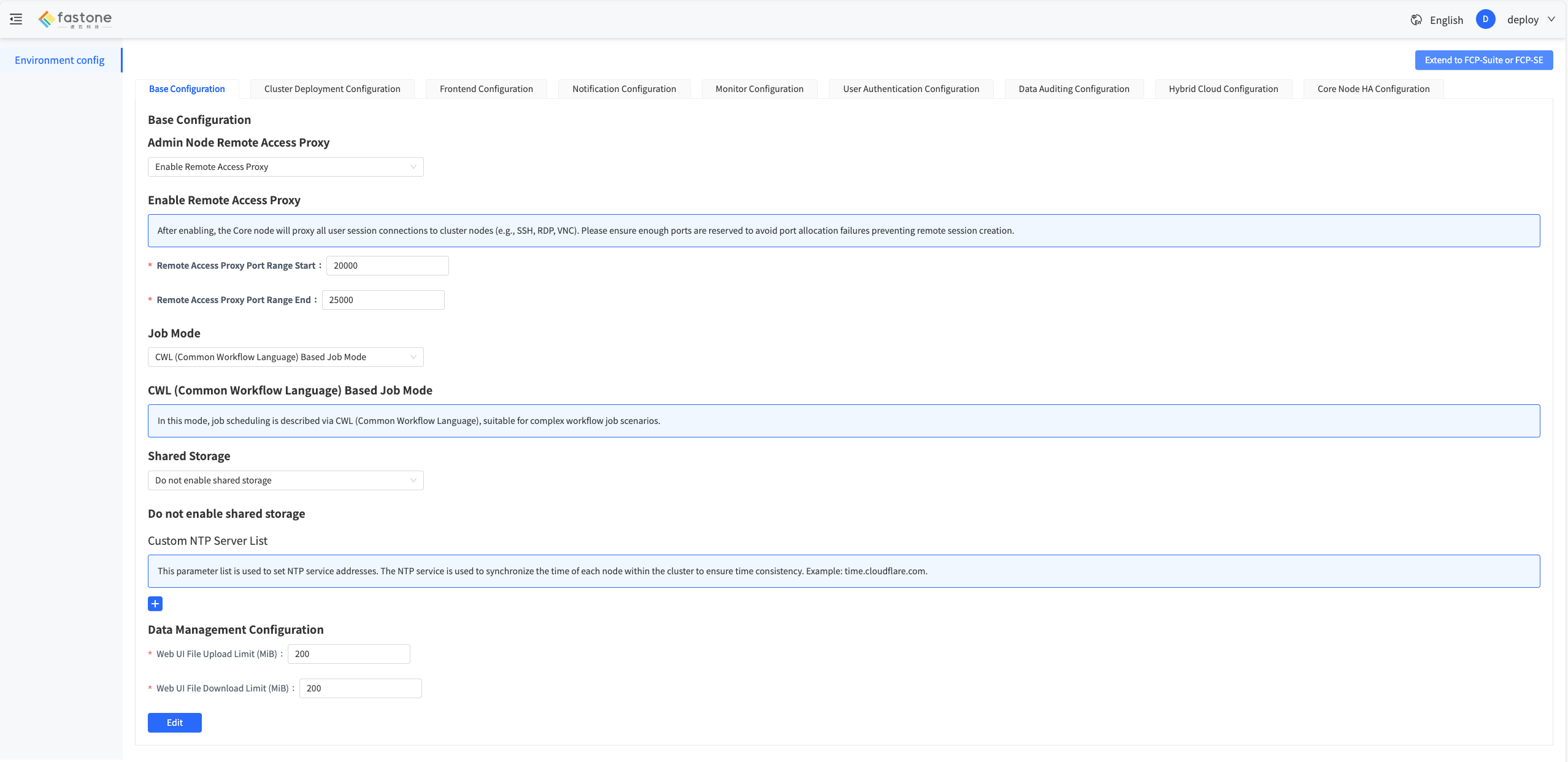
-
Click
Upgrade to FCP-Suite or FCP-SE. The following dialog box appears for Monitor node configuration: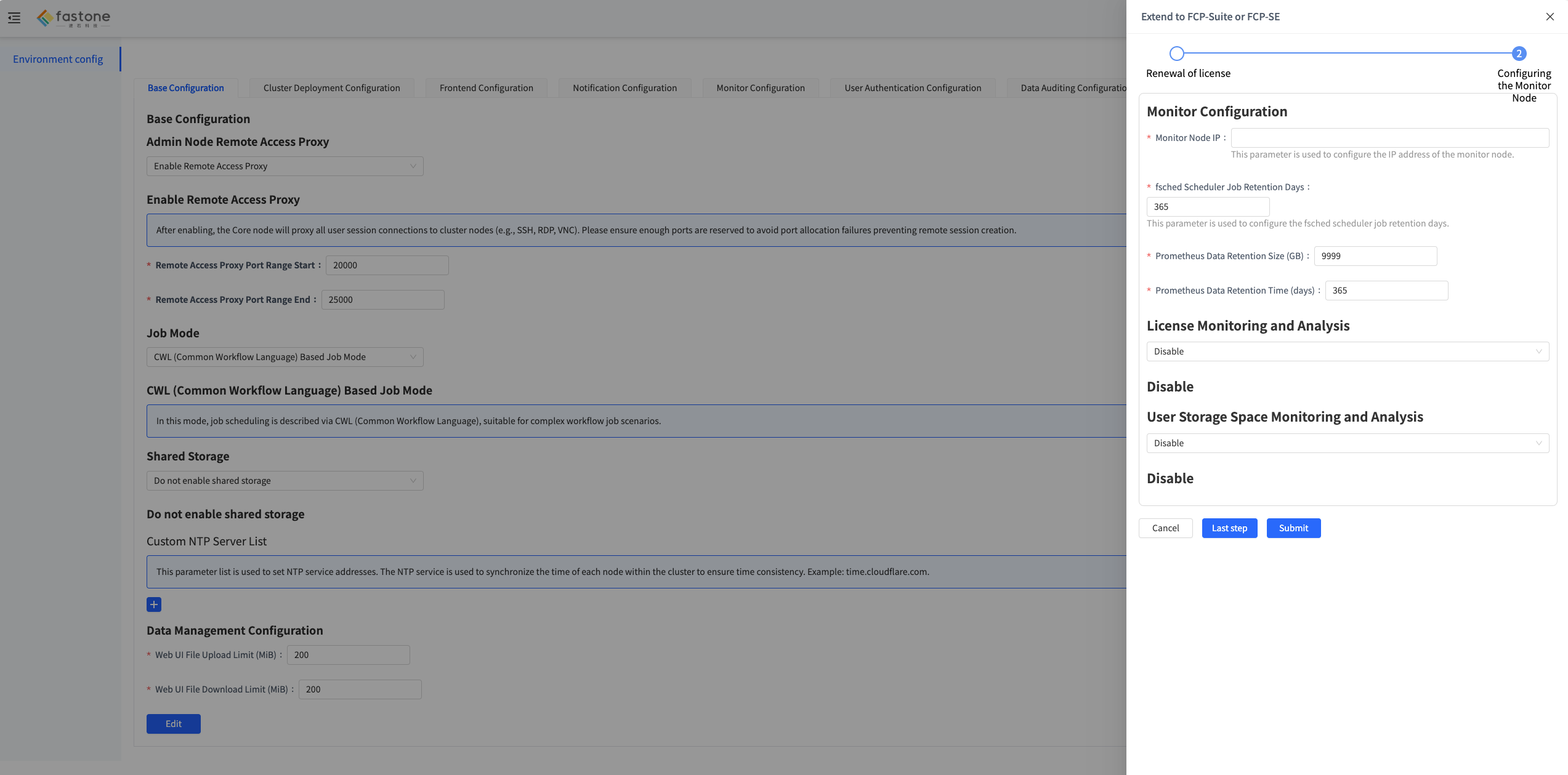
-
Fill in
Monitor node IP, clickSubmit, and wait for the configuration to complete.
Install VNC on Hosts (Linux Nodes)
- Refer to VNC Installation and Configuration to install and configure
VNC. - Refer to Static Node Network Planning to update the network plan and ensure the new services can be accessed normally.