AD Domain Controller Configuration
This document describes how to configure the AD domain controller service and user attributes so that the Fastone platform can correctly retrieve user properties.
The configuration steps are as follows.
Notes
- Ensure that port
389on the AD server is reachable over the network. - User passwords in AD cannot be modified from the Fastone platform.
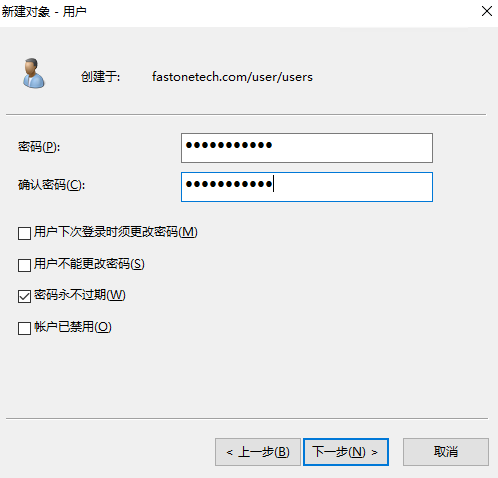
- When creating a user, do not select "User must change password at next logon". Otherwise, the user will not be able to log in to the Fastone platform with that password.
- Group names and user names in AD cannot be identical.
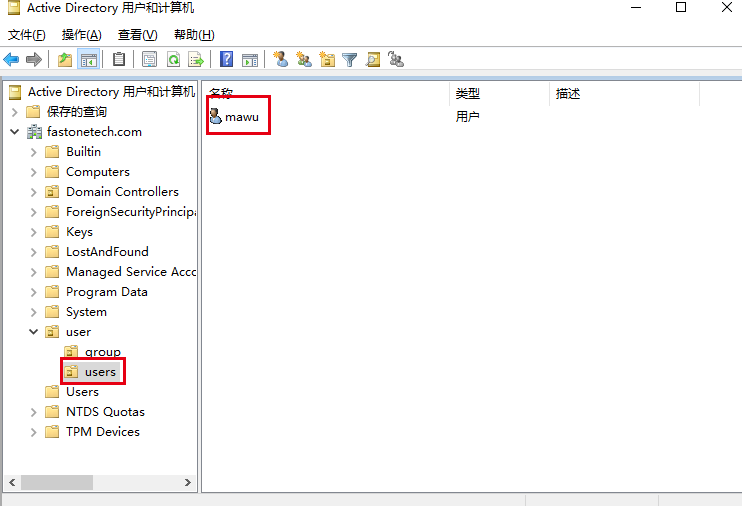
To keep the user name consistent with the user's primary group name, you can make the user's logon name different from the display name when creating the user. Also place all groups in one OU and all users in one OU.
Example: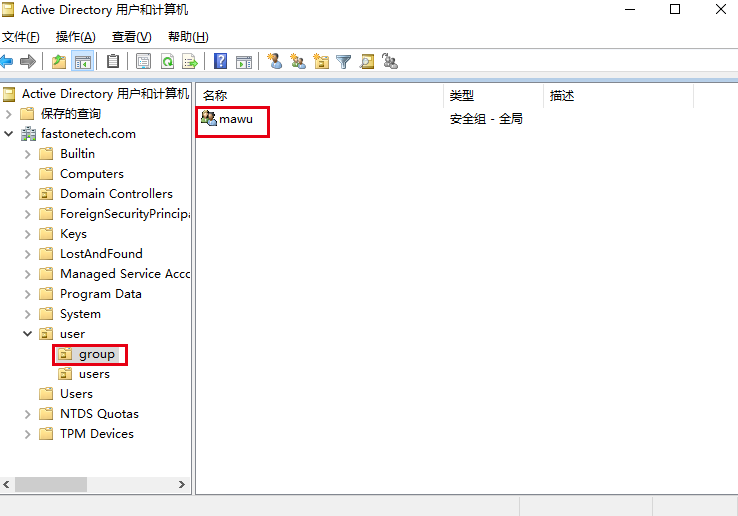
AD Domain Controller Configuration
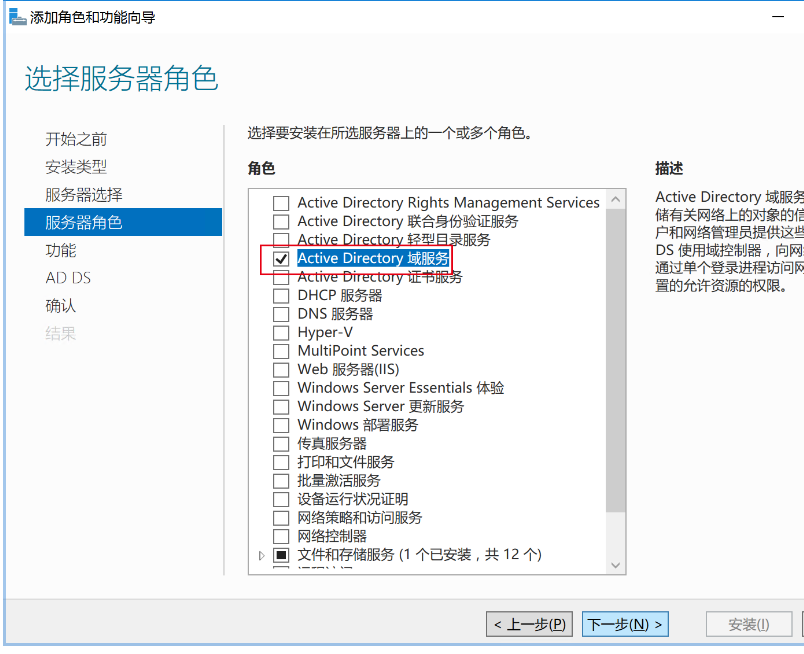
Log in to the Windows Server that will act as the AD server, open Server Manager, and install the required features.
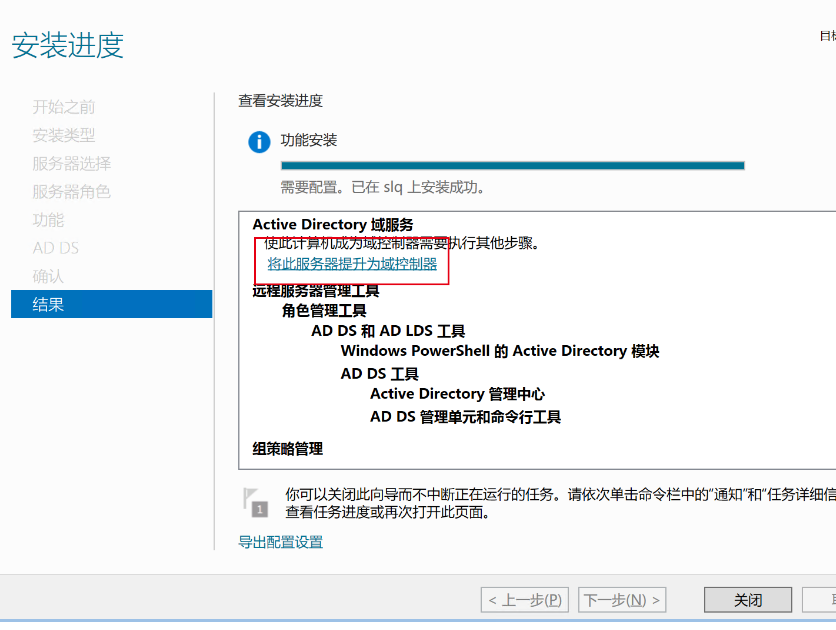
After the installation is complete, make sure the server has been promoted to a domain controller.
Entry Configuration
Make sure users and user groups in the AD authentication system include the attributes specified by the RFC2307 standard.
Once this standard is met, users and user groups in AD can be correctly mapped into the Linux system.
For details about RFC2307, refer to rfc2307.
For user groups, ensure the following attributes are present:
- objectClass: posixGroup
This value is fixed. - gidNumber
The group GID in Linux. By convention, it starts from 1000, for example: 1500. - cn
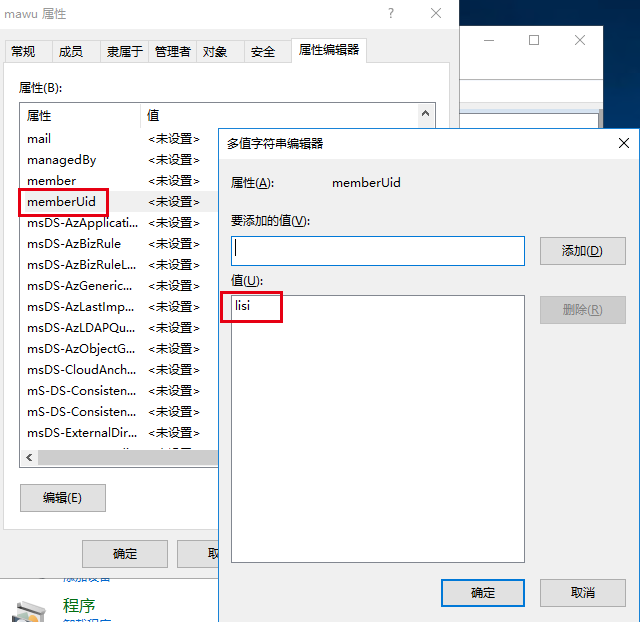
The group name in Linux, for example: mawu. - memberUid
The members of the Linux group, used to declare which users belong to the group, for example: mawu.
For users, ensure the following attributes are present:
- objectClass: posixAccount
This value is fixed. - objectClass: shadowAccount
This value is fixed. - cn
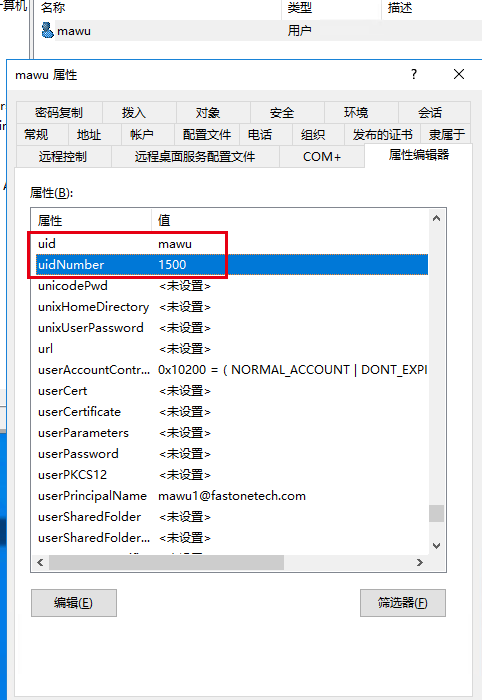
The user name in Linux, for example: mawu. - uid
The user name in Linux, for example: mawu. - uidNumber
The user'suidNumberin Linux. By convention, it starts from 1000, for example: 1500. - homeDirectory
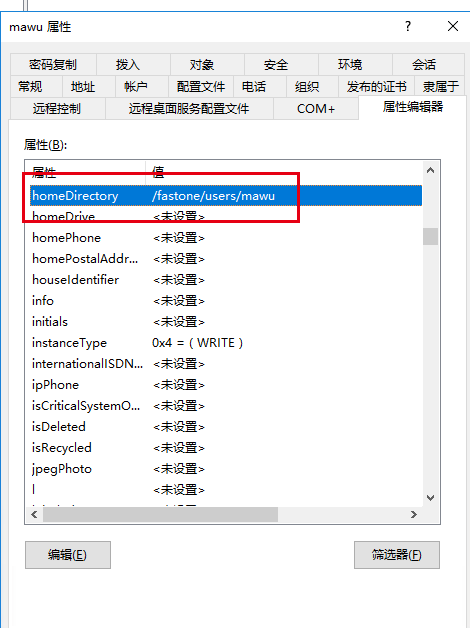
The user's home directory. The path must be unique. You can use a prefix such as xxx followed by the user name, for example:/fastone/users/mawu. - gidNumber
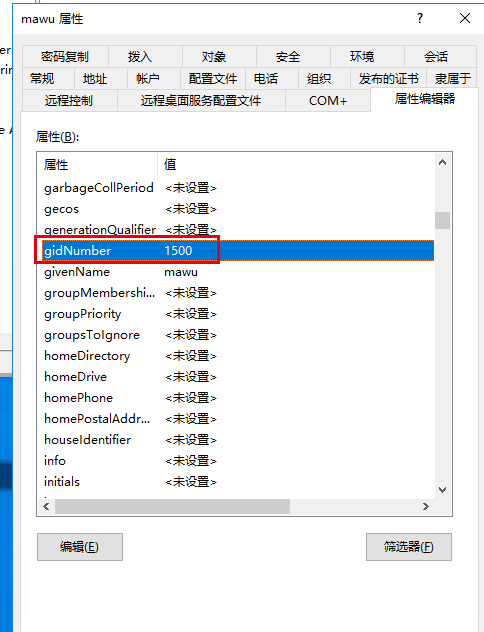
The GID of the user's primary group in Linux, for example: 1500. - loginshell
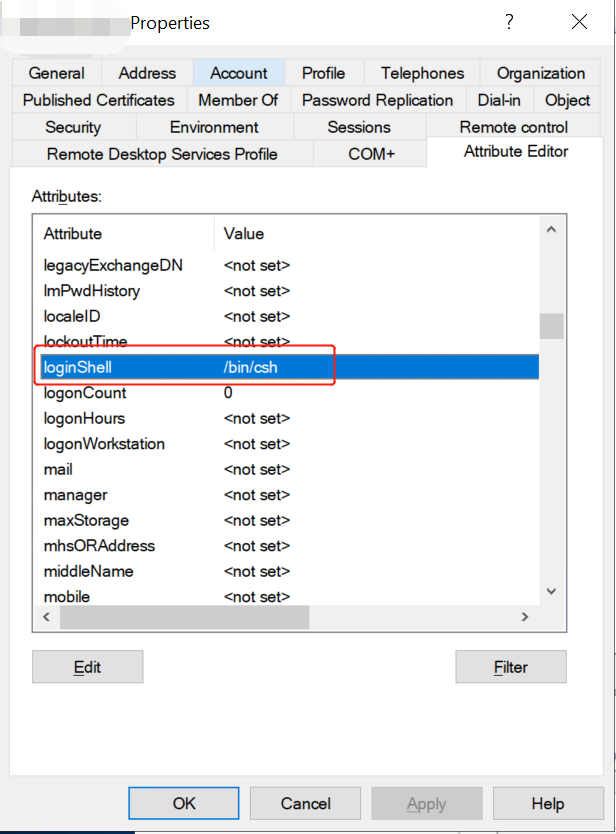
The user's default login shell, for example:/bin/csh.
User Groups
Open Active Directory Users and Computers.
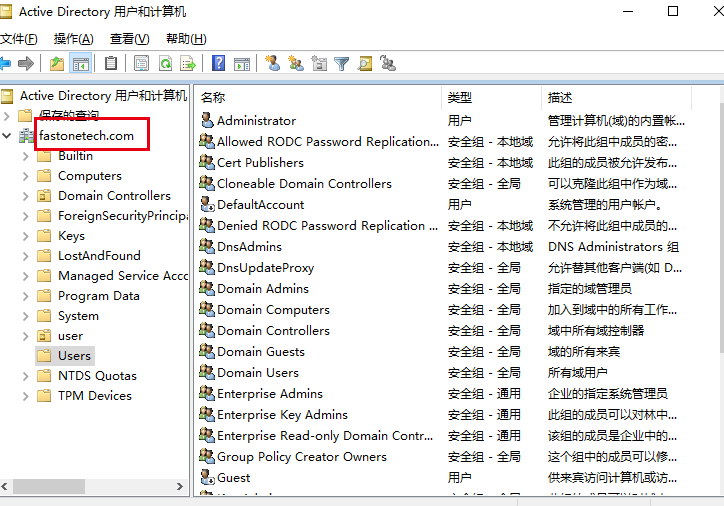
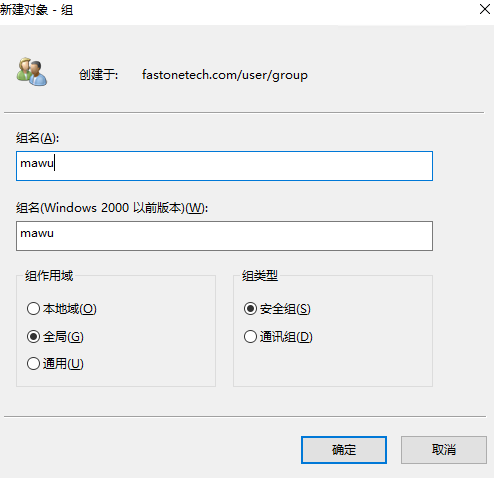
Add a group by right-clicking the OU and selecting New -> Group.
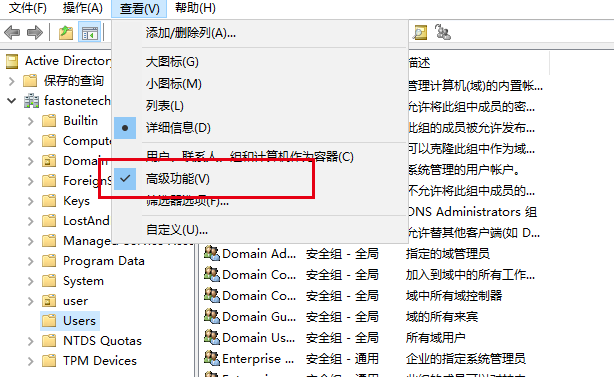
Enable advanced features by selecting View -> Advanced Features.
Select the group entry and open Attribute Editor.
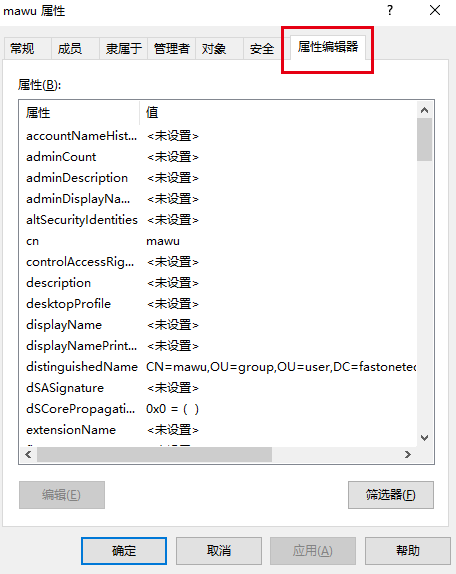
RFC2307 Attribute Configuration Reference

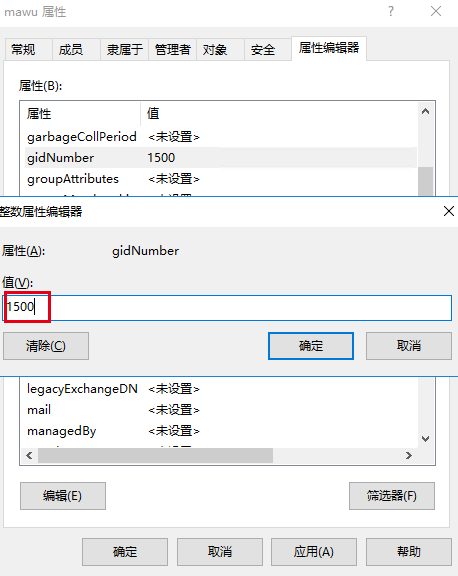
To add a user to a supplementary group, add the corresponding user uid to the memberUid attribute of the group.
Users
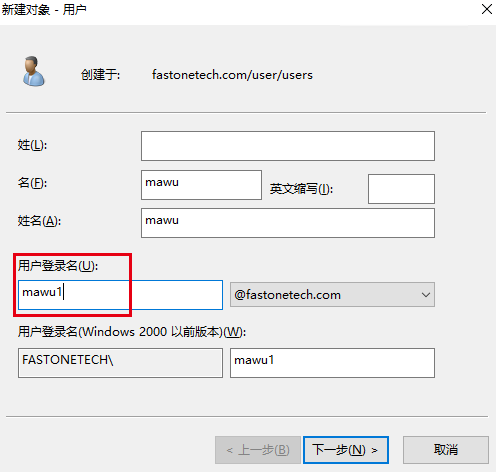
Make sure the user's logon name matches the uid value defined by the RFC2307 attribute specification so that the same user name is presented consistently in both Windows and Linux.
Right-click to create a new user. Because Windows AD does not allow user names and group names to be identical, while LDAP does allow this, the logon name must be changed to a unique string.
Set the password.
Right-click the user and select Properties -> Attribute Editor.
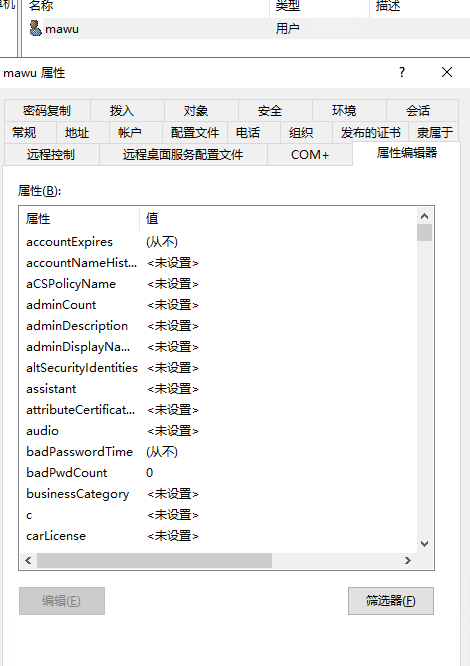
RFC2307 Attribute Configuration Reference